Appearance
A day as the owner
The other "day in the life" pages cover running the shop. This one is the business: setting it up, deciding what it sells, buying the capability you need, and watching the money.
You are the only login that can open Settings. If a manager asks where to change something, the answer is almost always "that is on your login".
Week one: set the shop up
The Get started card on your Dashboard walks the first steps — four of them for a rental shop. It tracks itself from real data, so a step ticks off when the thing actually exists, not when you clicked past it.
Beyond it, the settings worth doing early.
Settings → Business
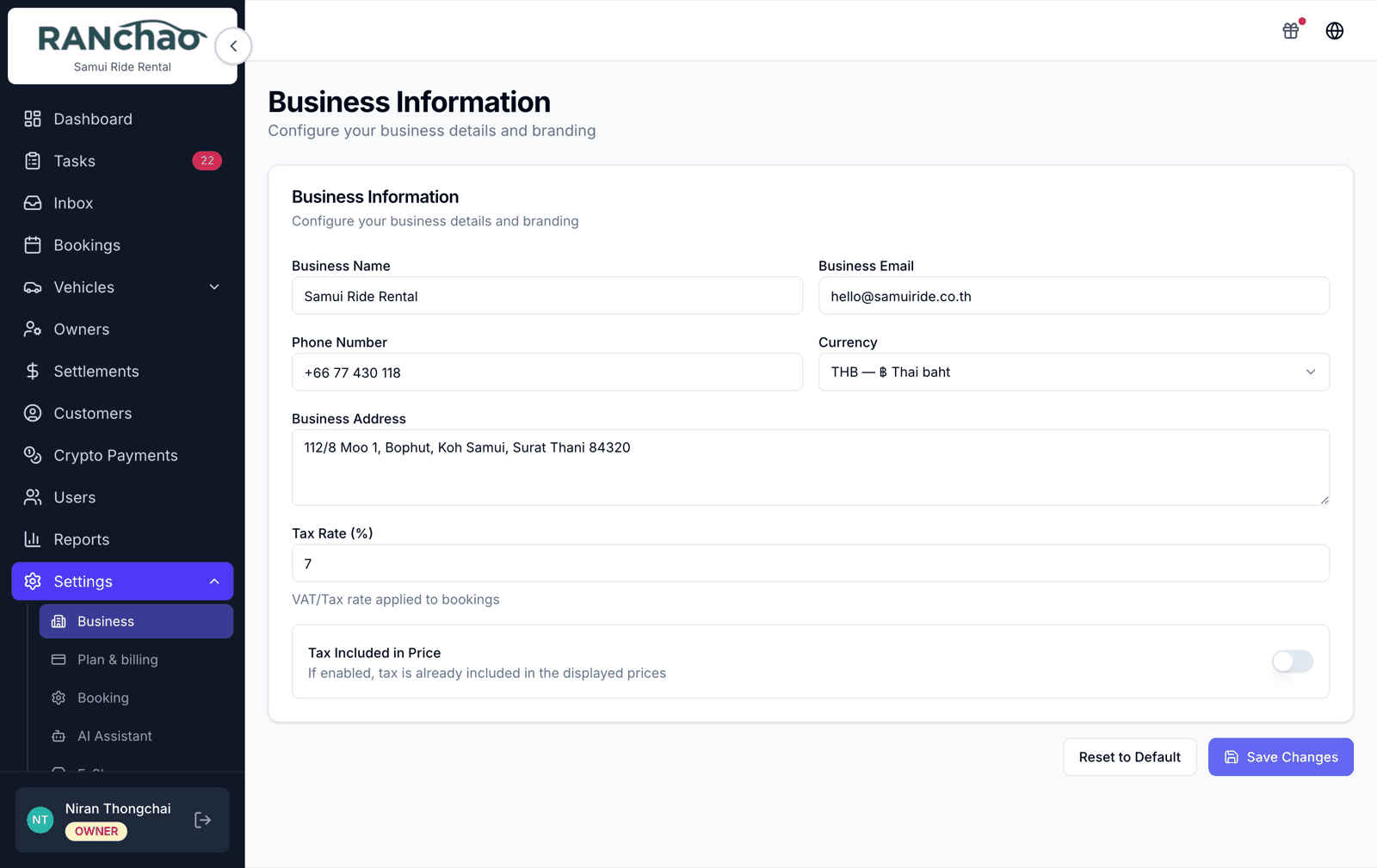
Name, contact email and phone, address, currency.
Fill in the email and phone: they are what your online store shows and what the chat assistant gives out when a customer asks how to reach you.
Set the currency before you enter any prices. Every amount in the back office and on your storefront is shown in the currency you pick here, formatted the way that currency is normally written. It changes how numbers are displayed, not what they are: it will not convert prices you have already typed.
Settings → Booking
One setting: the Default Agent Commission your agents earn.
Settings → Payments
At minimum, decide whether you are taking cards and connect Omise if you are. Everything else about money is in Getting paid.
Settings → Task checklists
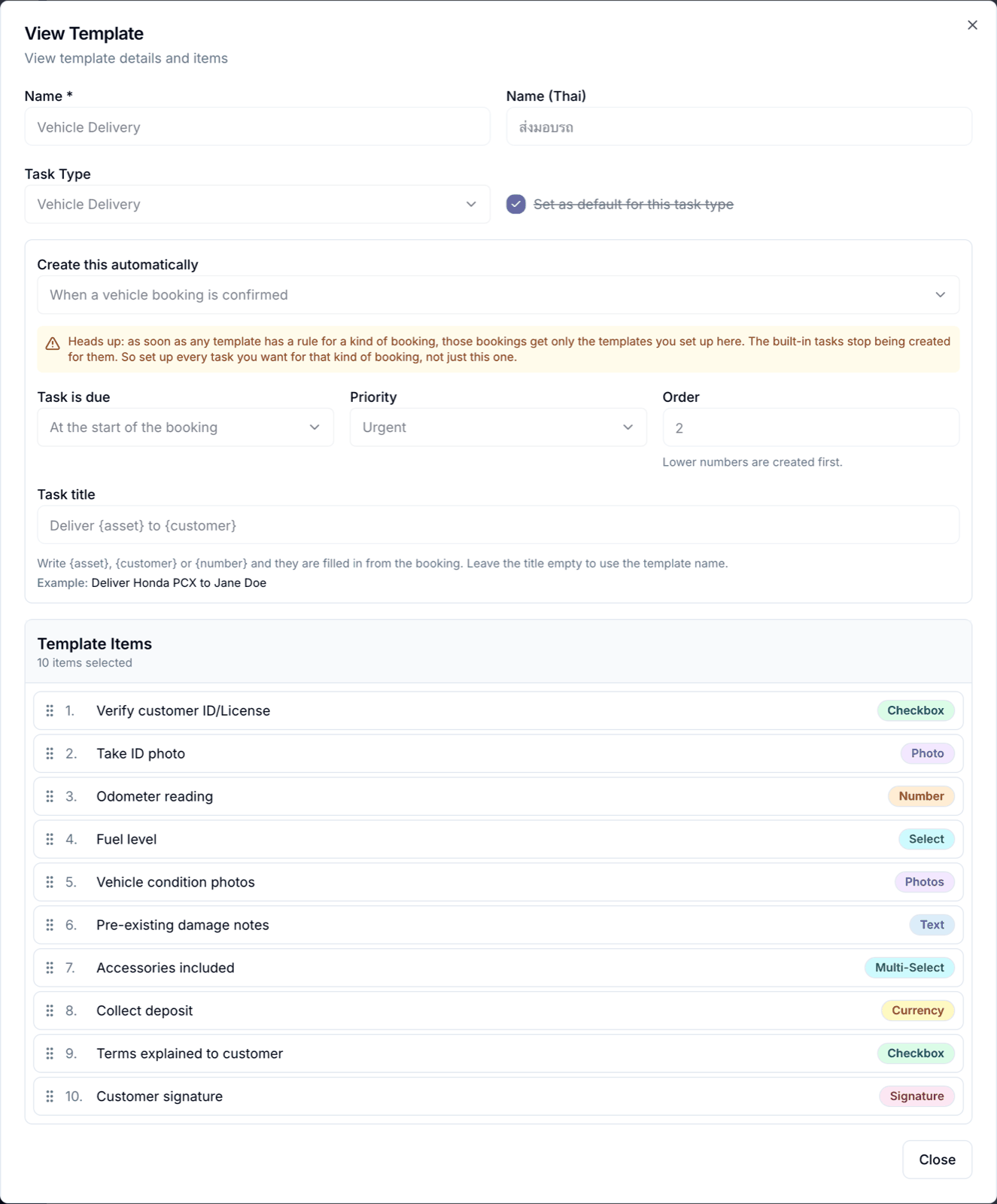
This is where your operating standard lives. The checklist itself is the difference between "clean the scooter" and a cleaner who knows what you mean.
Each template can say when it is created automatically: when a vehicle, property or trip booking is confirmed, or when an order arrives from your online store. Leave it alone and you get the built-in set for your vertical. Configure one and it replaces the built-in set for that kind of booking rather than adding to it, so if you set up one trip checklist, trips get exactly that one task.
Tasks are created with nobody attached. That is deliberate: your team sees unclaimed work, and starting a task claims it, so the board behaves like a shared job list rather than a set of private inboxes.
Bringing your team in
Users → Invite.
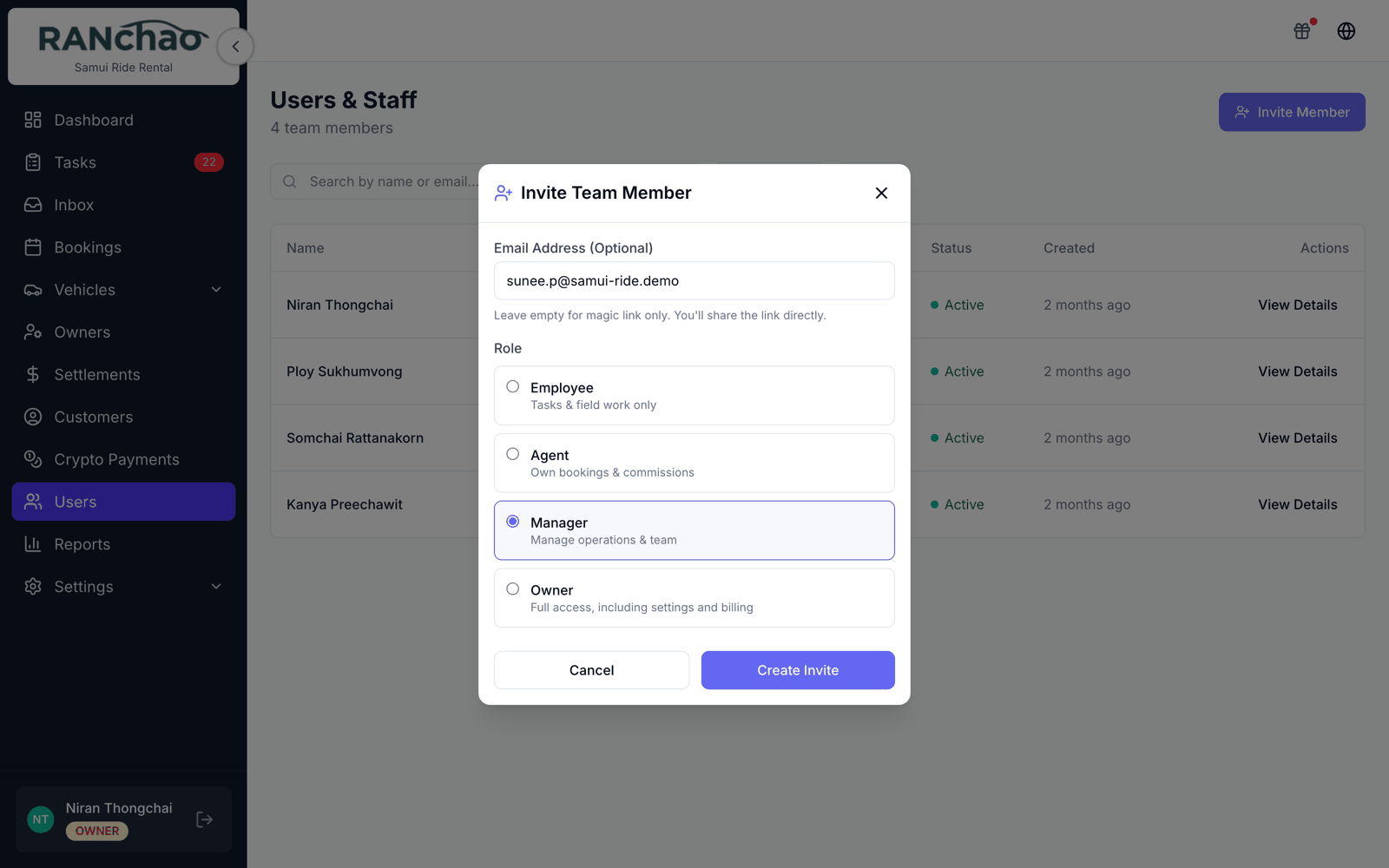
- Manager: runs the shop. Everything except Settings.
- Agent: sells. Sees their own bookings; can create bookings and customers.
- Employee: does the jobs. Dashboard and Tasks only.
Two things to know while you are here.
Auto-created tasks belong to nobody until somebody starts them. Your team can see them and claim them by starting; assign one yourself when you want a specific person on it. Owners and managers get an Unassigned filter on the Tasks page to see what nobody has picked up.
Role changes and commissions are yours alone. A manager cannot change anyone's role or set an agent's commission.
Deciding what you sell
Settings → Plan & billing → What you run. Vehicle rental and property rental are available on every plan. Trips & tours needs the Business plan.
Turning one on adds its menu items and its settings sections. They are not mutually exclusive: run a fleet and properties from the same account if that is your business.
Buying capability
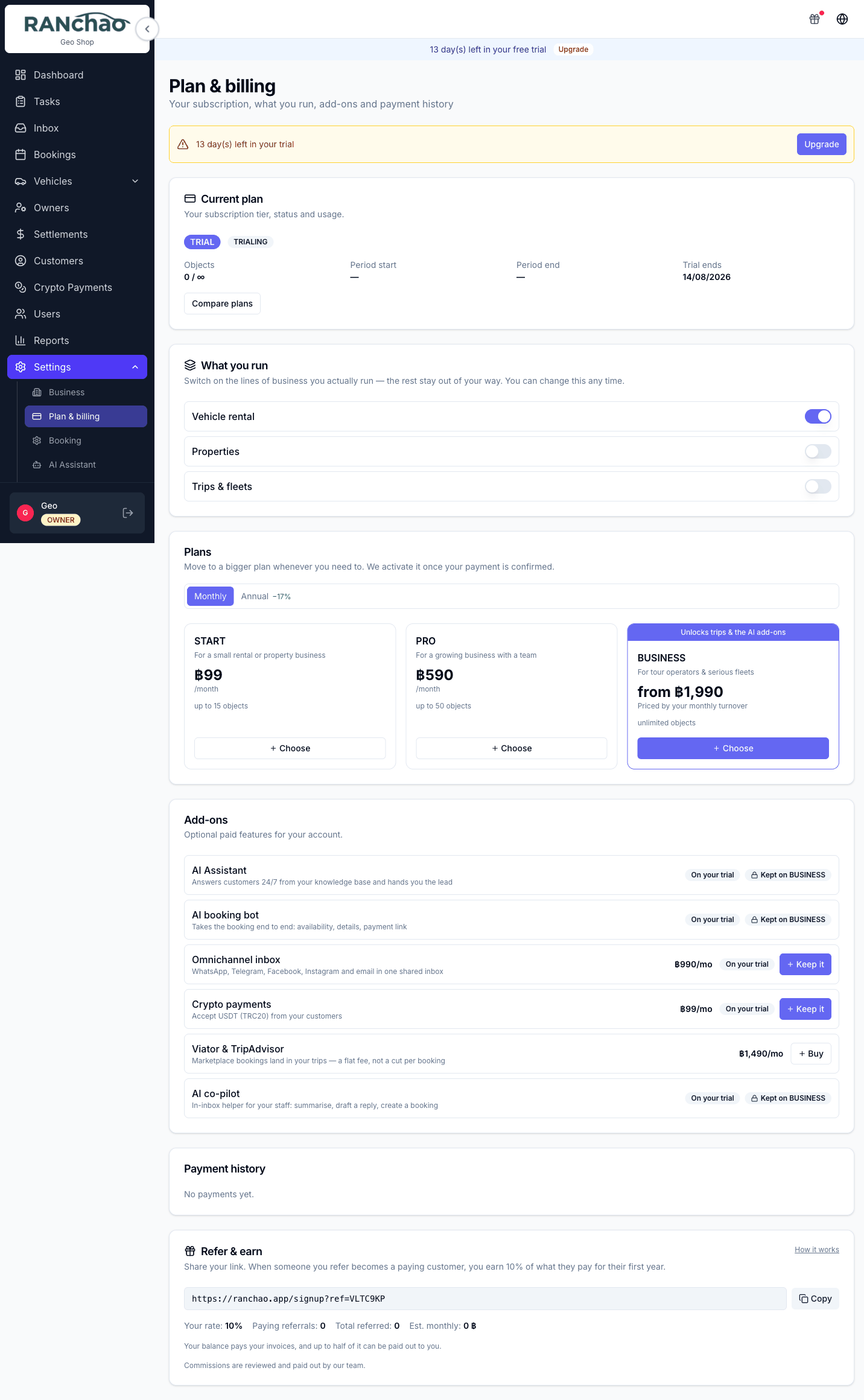
Settings → Plan & billing → Add-ons. The list, the prices and what each one does are in the overview.
One dependency decides whether an add-on does anything for you: every AI add-on requires the Omnichannel inbox. Buying the assistant without the inbox buys you nothing that runs. The Integrations page warns about this, but it is worth knowing before you spend.
On a trial the inbox, both AI tiers, the co-pilot and crypto are switched on for you. Viator is not.
Opening the online store
Off by default. Turn it on at Settings → E-Shop: enable it, pick your subdomain, pick a template, set the theme colour and hero text.
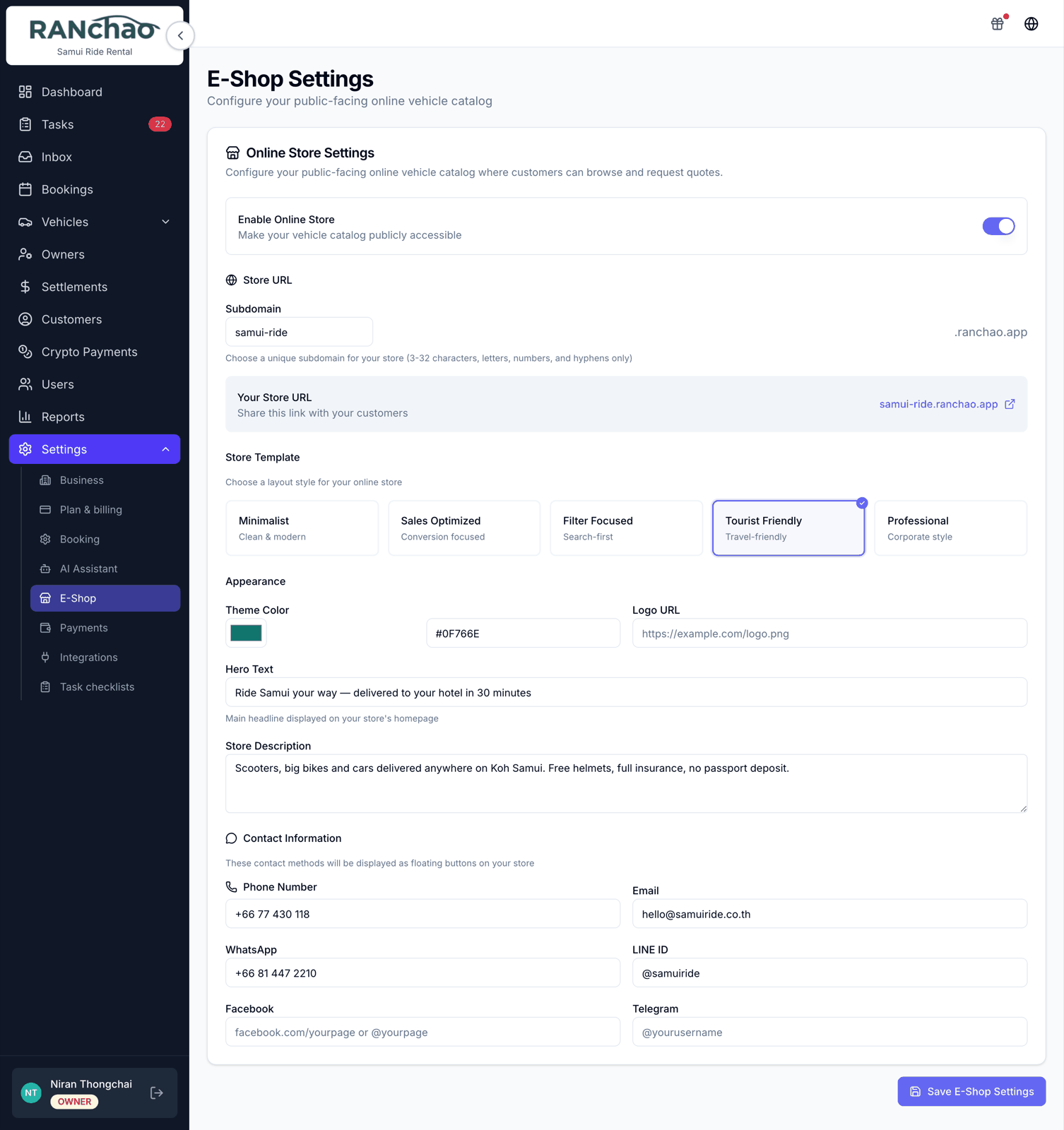
Your customers get https://yoursubdomain.ranchao.app. The link is shown to you on that page.
It publishes what you sell, in whatever vertical you run: vehicles marked Available, properties marked Available, and trips that have a price. It follows the verticals you actually have turned on, so a scooter shop never shows an empty villa section. Prices are shown per day, per night or per person, whichever the thing is sold by, in your own currency.
The look is a setting, not a fixed design. Settings → E-Shop offers several templates, from a restrained one to a bright holiday style, plus your own theme colour and hero text. The screenshot below is one of them — try a few and pick the one that sounds like your shop.
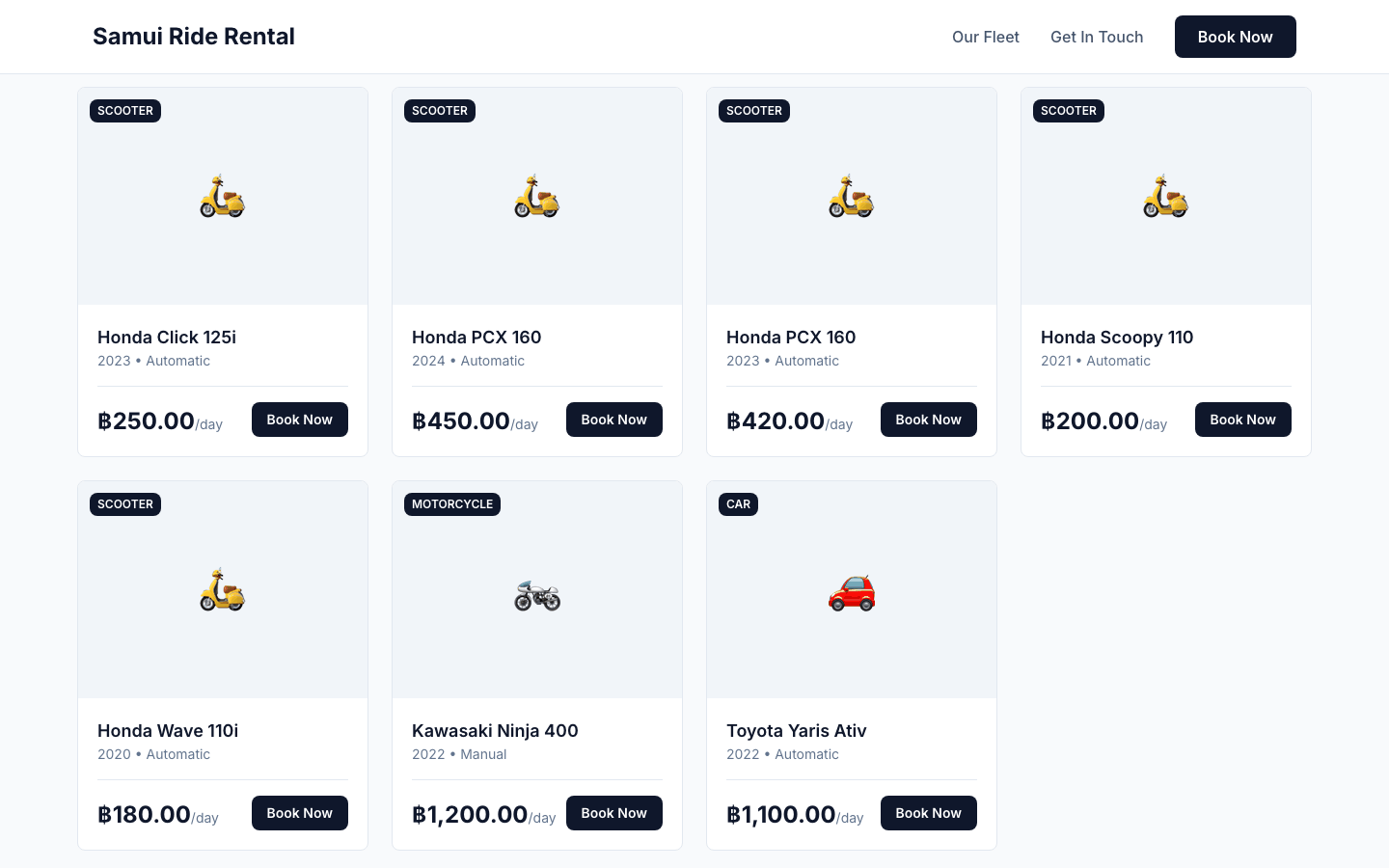
Two things are deliberately left off, because a card with no price is worse than no card: a property with no nightly rate, and a trip with no rate set. If something is missing from your shop, that is the first thing to check.
When an order arrives
It lands in your Bookings list as a Quote, and creates a task, Check online order Q20260801X7K4M2, so it shows up in somebody's day rather than sitting unseen. Nothing auto-confirms it.
To find it: the status filter has no Quote option, so look under All statuses and spot the purple Quote badge. The E-Shop label appears once you open the booking. If you switch the store on, put "check the bookings list" into somebody's daily routine.
Teaching the assistant
If you have bought the AI add-ons, Settings → AI Assistant is where you set the bot's persona, its goal and its knowledge base. This is worth an hour of your time: the bot answers only from what you write there and refuses to guess, so a thin knowledge base produces a bot that constantly says it does not know.
Full detail, including how to take a conversation over from the bot and where co-pilot commands go, is in The inbox and the AI.
Watching the money
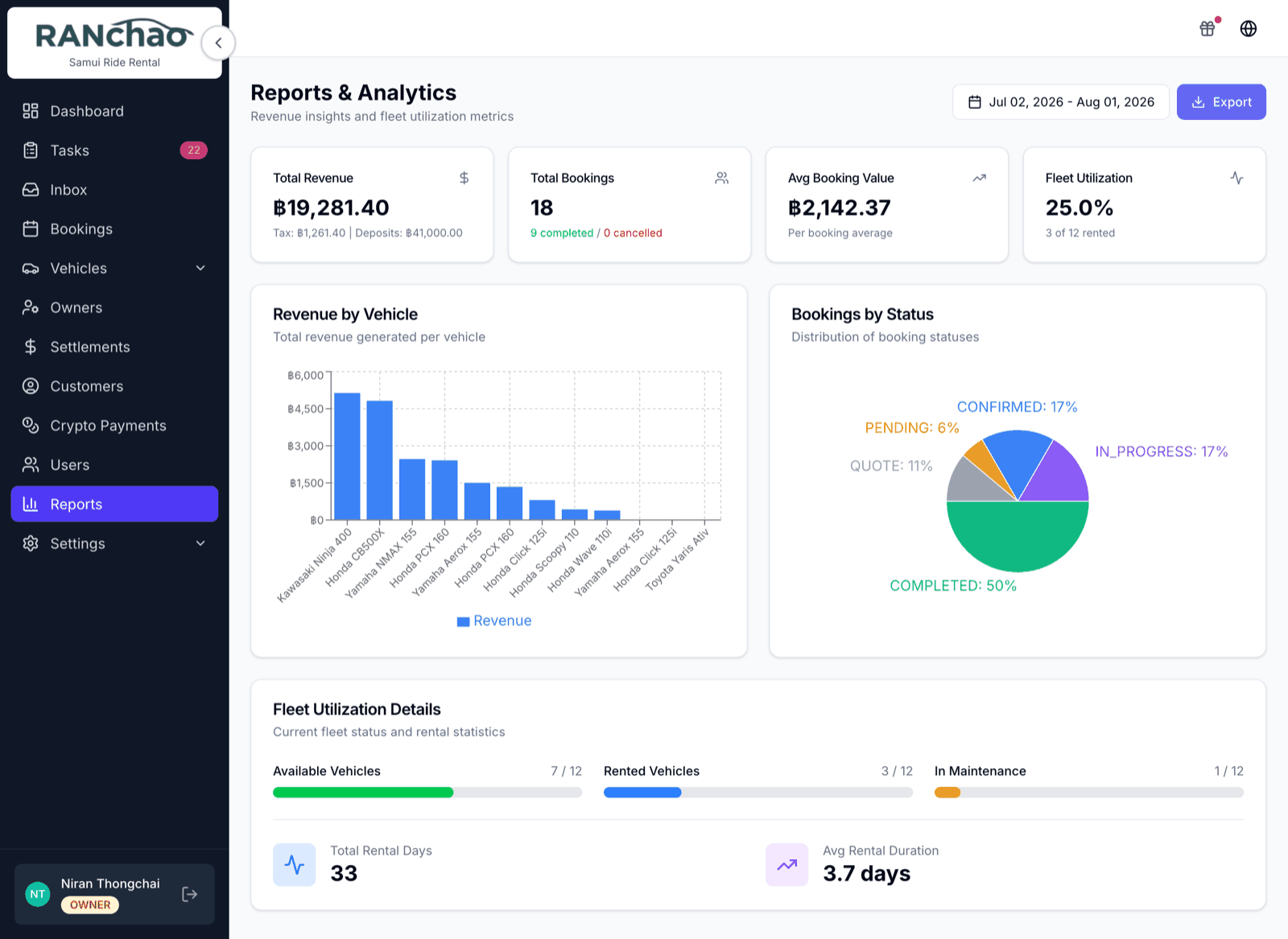
Reports covers revenue, bookings by status and fleet utilisation over a date range.
The Dashboard's Revenue (Month) tile is an indicator rather than an accounting figure: it sums bookings marked Completed whose record was last modified this month, so it follows edits rather than payments.
Settlements is where you reconcile with vehicle or property owners, partners and agents.
Crypto Payments is a read-only ledger of USDT taken and paid out.
Referrals
Bonus account, in the top bar on desktop, is the referral programme. Your link is ranchao.app/signup?ref=YOURCODE, and you earn 10% of everything a tenant you referred pays, for their first year. The person you referred gets half their first month.
Credit comes off your next invoice automatically. Up to half of what you have earned can be requested as a cash payout instead, from the same panel; that sends us a request and we arrange it with you. Credit funded by card payments is held for a while before it becomes withdrawable, since a card payment can be reversed.
You can also pass credit to another operator as a gift code. Gifted credit is spendable but never withdrawable.
Before your trial runs out
Read Plans, the trial, and getting into your account. When a trial expires your account goes read-only: everything still opens, but nothing saves until you pick a plan.