Appearance
The inbox, and where the AI writes
Requires the Omnichannel inbox add-on. Everything else on this page depends on it: the AI assistant, the booking bot and the co-pilot are all switched off if the inbox is off, no matter what else you have bought.
What the Inbox is
Inbox in the menu opens one shared conversation view for every channel you have connected. Your whole team works from it, so a customer who wrote on WhatsApp yesterday and Instagram today is one conversation thread, and whoever is on shift can answer.
That shared part is the point, and it is worth being deliberate about. Talking to customers from the Inbox rather than from personal phones means:
- Nobody hands out their own Telegram or WhatsApp. Staff answer through the shop's channels, and when somebody leaves, the conversations stay.
- Owners, managers and agents all see the same threads. You decide who is an agent; anyone who is gets the Inbox.
- A conversation is attached to its booking, so the person picking it up reads what was agreed instead of asking the customer to repeat it.
- The money can be asked for in the same window — see below.
The red number on the Inbox menu item is your count of open conversations. It refreshes about every 45 seconds. It is on the desktop sidebar only.
If you land on the Inbox and see "Unable to load the inbox. Please try again later.", the usual cause is that the add-on is not active on your account.
Connecting a channel
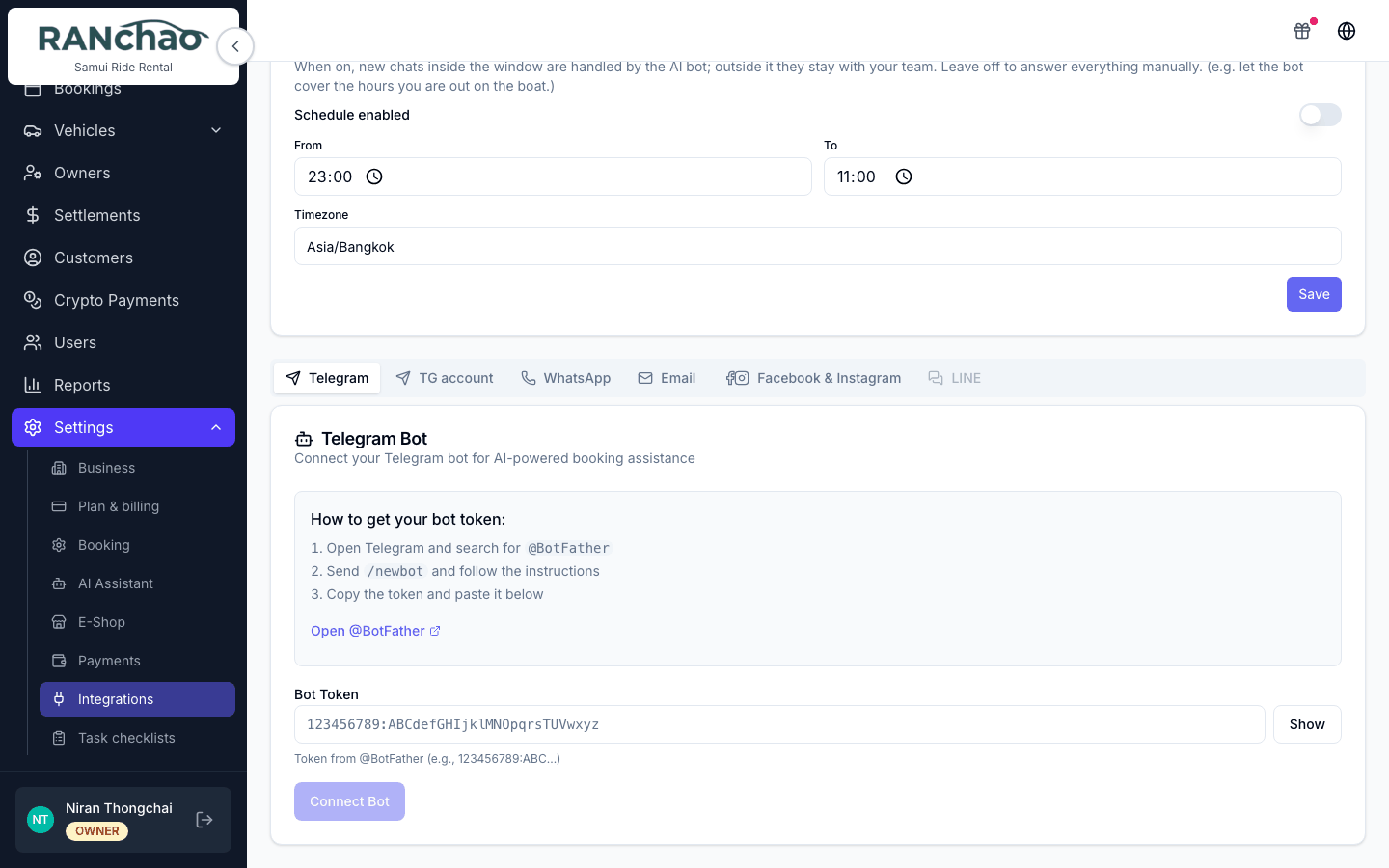
Settings → Integrations. One tab per channel.
| Tab | What you need | Notes |
|---|---|---|
| Telegram | A bot token from @BotFather | Paste the token, press Connect Bot, then Register Webhook with Telegram |
| TG account | A phone number | Links a real Telegram account, not a bot, so your existing chats arrive. Confirm with the code Telegram sends, or scan a QR |
| Your WhatsApp number | Press Connect WhatsApp and pair by scanning the QR with your phone | |
| A mailbox address and password | Type the address and it detects the server settings. Gmail needs an App Password, not your normal one | |
| Facebook & Instagram | A Facebook login | Press Connect Facebook Page, authorise in the popup, pick the page. Instagram must be a Business account linked to a Page |
| Bokun | Bokun credentials | Trips only |
| Viator | Viator credentials | Trips only, paid add-on |
| LINE | Two values from your LINE Official Account | See Connecting LINE below — it has a few more steps than the others |
Connecting a channel and reading it are two different purchases. Without the inbox add-on you can still connect Telegram or WhatsApp for the bot, but there is no shared inbox to read them in, and the Integrations page shows an amber notice saying exactly that.
Connecting LINE
LINE is the one channel that asks for more than a button, so it gets its own section. Two things to know before you start.
You keep your personal LINE. A LINE Official Account is a separate account with its own @id. Your own LINE stays exactly as it is — same phone, same friends, same chats — and you manage the Official Account with the same login. Nothing is taken away from you, unlike a WhatsApp Business number.
An Official Account is free. The unverified kind — a grey badge — costs nothing, takes minutes, and needs no company registration. It has the full messaging feature set. The paid blue badge only makes you findable by name in LINE's search; customers can always add you by QR code or link, which you can put on your shop page, in booking confirmations and in your OTA profile.
The five steps
- Create the Official Account at manager.line.biz — sign in with your existing LINE account.
- Turn the Messaging API on. In the Official Account Manager: Settings → Messaging API → Enable. The first time it asks for a developer name and email.
- Copy the channel secret. At developers.line.biz/console you land on a list of providers, not on your channel. Click your provider, then the channel inside it, then the Basic settings tab → Channel secret. Copy it and paste it into the first field on our LINE tab.
- Issue an access token. Same channel → Messaging API tab → Channel access token (long-lived) → Issue. Copy it and paste it into the second field. (Issuing a new one later invalidates the old one, and you would have to paste the new one here.)
- Press Connect LINE.
The two values live on two different tabs, so you will be going back and forth between LINE and this page. That is normal — paste each one as you find it.
We do the rest: we set your webhook address on the channel and ask LINE to send a real test event, so the page tells you it works before you leave it.
The switches we cannot flip for you
While you are on that Messaging API tab, you will see a block called LINE Official Account features with Edit links. Those links open Response settings in the Official Account Manager — a different site, which is why it is easy to miss.
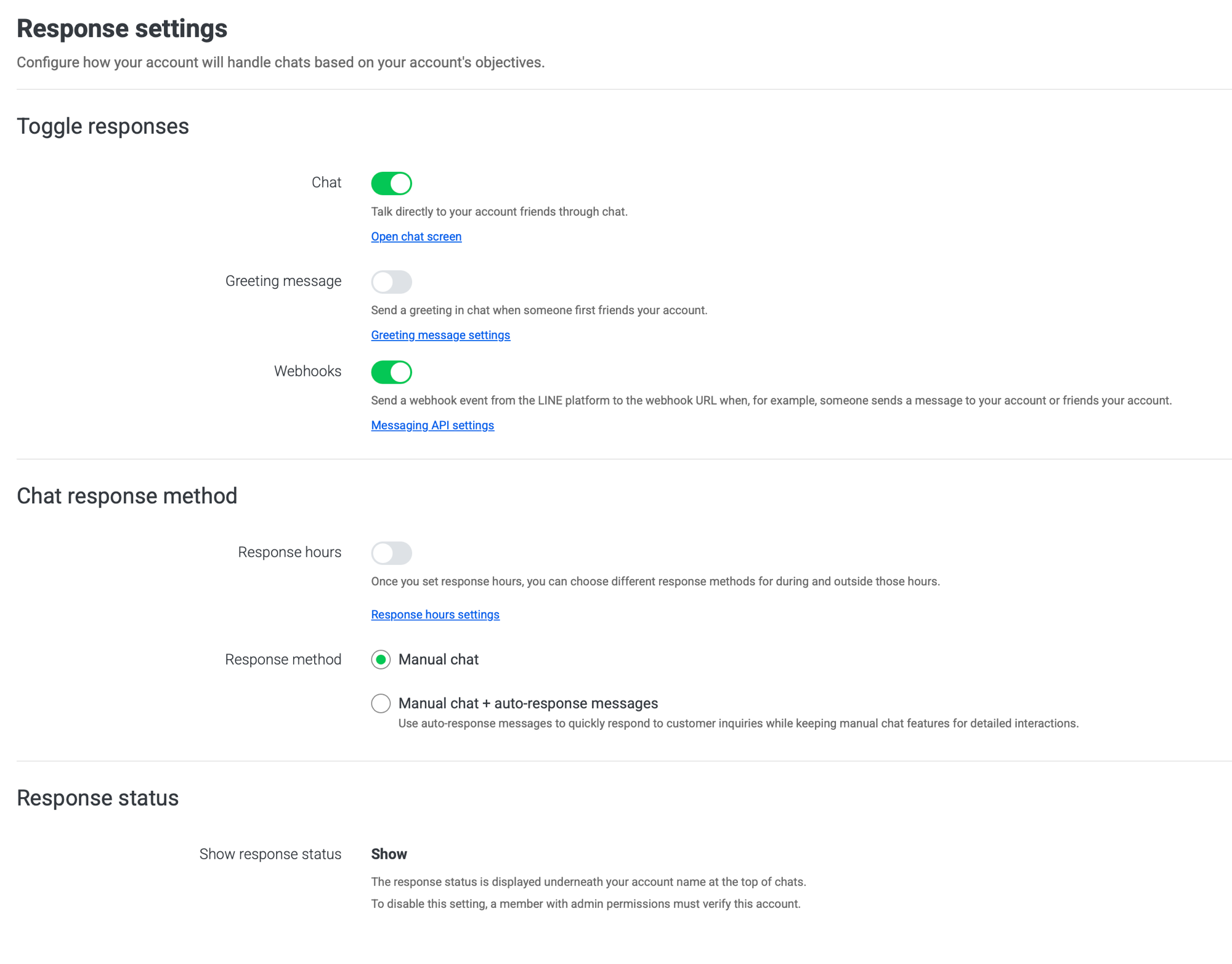
Webhooks must be on. This is the one that matters. If it is off, nothing reaches us at all and the connection looks dead for no visible reason. We read this switch back from LINE and tell you on the LINE tab if it is off.
Auto-responses must be off, or LINE answers with its own canned reply before we ever see the message, and it looks like your bot is ignoring people. Where this setting lives depends on the Chat switch, which is confusing the first time:
- Chat off → Auto-response messages is its own toggle under Toggle responses. Turn it off.
- Chat on → that toggle disappears and the choice moves down to Chat response method. Pick Manual chat, not "Manual chat + auto-response messages". This is what the screenshot above shows.
LINE gives us no way to read this one back, so nobody can check it for you.
Chat itself is a real choice. On, and messages also land in LINE's own chat console — you have two inboxes, and anything answered inside LINE never reaches ours. Off, and everything comes here. Both work; if you leave it on, our LINE tab will remind you that a second inbox exists.
Greeting message can stay on if you want one — it fires when someone adds you as a friend and does not interfere with anything. Allow bot to join group chats can stay off; group chats are not connected yet either way.
Press Check connection on the LINE tab after changing anything.
What works, and what does not yet
Customer chats with your Official Account arrive in the inbox and replies go back — from you or from the bot, the same as any other channel. Photos a customer sends arrive as attachments.
Group chats are not connected yet. If your team coordinates in a LINE group, that group does not appear in the inbox. It is a separate build.
We cannot send documents. LINE has no file message type at all, so a PDF attachment is dropped and only the text goes out. Photos are fine.
Where the AI writes, and how to stop it
The bot answers customer-facing conversations in the inbox. It does not write anywhere else in the app.
The rule that decides whether it answers
A conversation the bot is allowed to handle is in status pending. The moment a conversation is set to open, the bot goes quiet on it and stays quiet.
That is the whole mechanism, and it is how you take over:
- To take over from the bot: open the conversation and set its status to open. The bot will not write in that thread again.
- To hand it back: resolve the conversation when you are done. The next time that customer writes, it comes back as pending and the bot picks it up again.
There is no cron that quietly re-enables the bot behind you. Once a human has taken a conversation, it is the human's until they resolve it.
Business hours for the bot
Settings → Integrations → "When the bot is active". Three choices:
- Always — the AI answers around the clock.
- On a schedule — it answers inside the hours you set, in the timezone you set. Outside them a chat waits for your team.
- Off — the AI never answers. Every chat goes to a human.
Be clear about what "outside the window" does: the bot stays silent and the chat is left open in the inbox. No automatic reply is sent, nobody is assigned, and nobody is notified. Someone has to be watching.
You can also switch the bot on or off per channel in the Bot engagement card on the same page: WhatsApp, Telegram, Instagram, Messenger, LINE.
When the AI fails
If the model errors, the customer gets one apology in their own language, along the lines of "Sorry, something went wrong on my end. I'm connecting you with our team, a colleague will pick this up", and the conversation is flipped to open. In other words a failure always ends with a human owning the chat, never with silence.
Teaching the bot
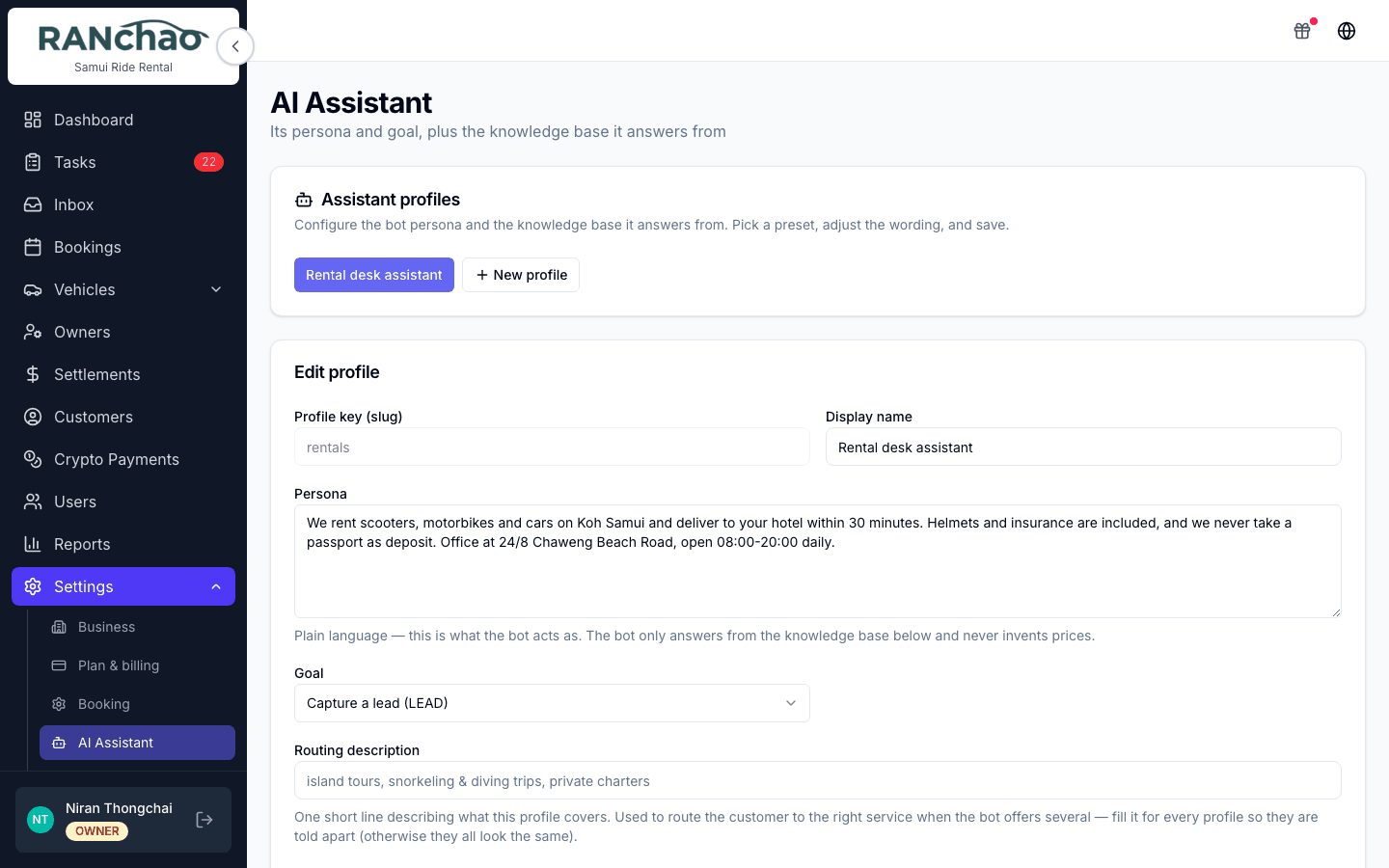
Settings → AI Assistant.
Assistant profiles. A profile is a persona plus a goal. Start from one of nine presets (Retail sales, Catering sales, Restaurant / cafe, Services & appointments, Real estate / rentals, Tours & activities, FAQ answerer, Support / FAQ, or Custom) and edit it.
The fields that matter:
Persona: plain language describing who the assistant is and how it behaves. It answers only from your knowledge base and will not invent prices.
Goal: three settings, and this is the one to get right.
- Just answer questions (ANSWER): it answers, nothing more.
- Capture a lead (LEAD): it also collects contact details and what they want.
- Create an order (BOOKING): it can quote and create an order. This one needs the AI booking bot add-on. Without it the bot falls back to capturing the lead instead. A note under the setting tells you so.
What the bot collects. Two separate decisions, and it is worth keeping them apart:
- Tick a field to say the bot should gather it at all — date, number of people, destination, venue, dietary needs, budget, pickup point, phone, their questions. Add custom field covers anything of your own: give it a label and the bot will ask for it.
- Once a field is ticked, a required switch appears beside it. Leave it off and the field is nice-to-have: the bot takes the answer if it comes up and does not chase it. Turn it on and the bot will not finish without it — it keeps asking, and only captures the lead or creates the order once every required field is answered. It also asks "anything else?" before wrapping up.
Mark as required only what you genuinely cannot work without. Each one is another thing the customer has to answer before anything is recorded, and a long list of them is how a chat gets abandoned halfway.
Leave every box unticked for a bot that only answers questions.
Greeting line and Routing description: the opening message, and how this profile is chosen when you have several.
Enabled: a switch per profile.
Knowledge base. The same page, lower down. This is what the bot is allowed to answer from, and nothing else. Documents are categorised: menu, pricing, conditions, partners, FAQ, other.
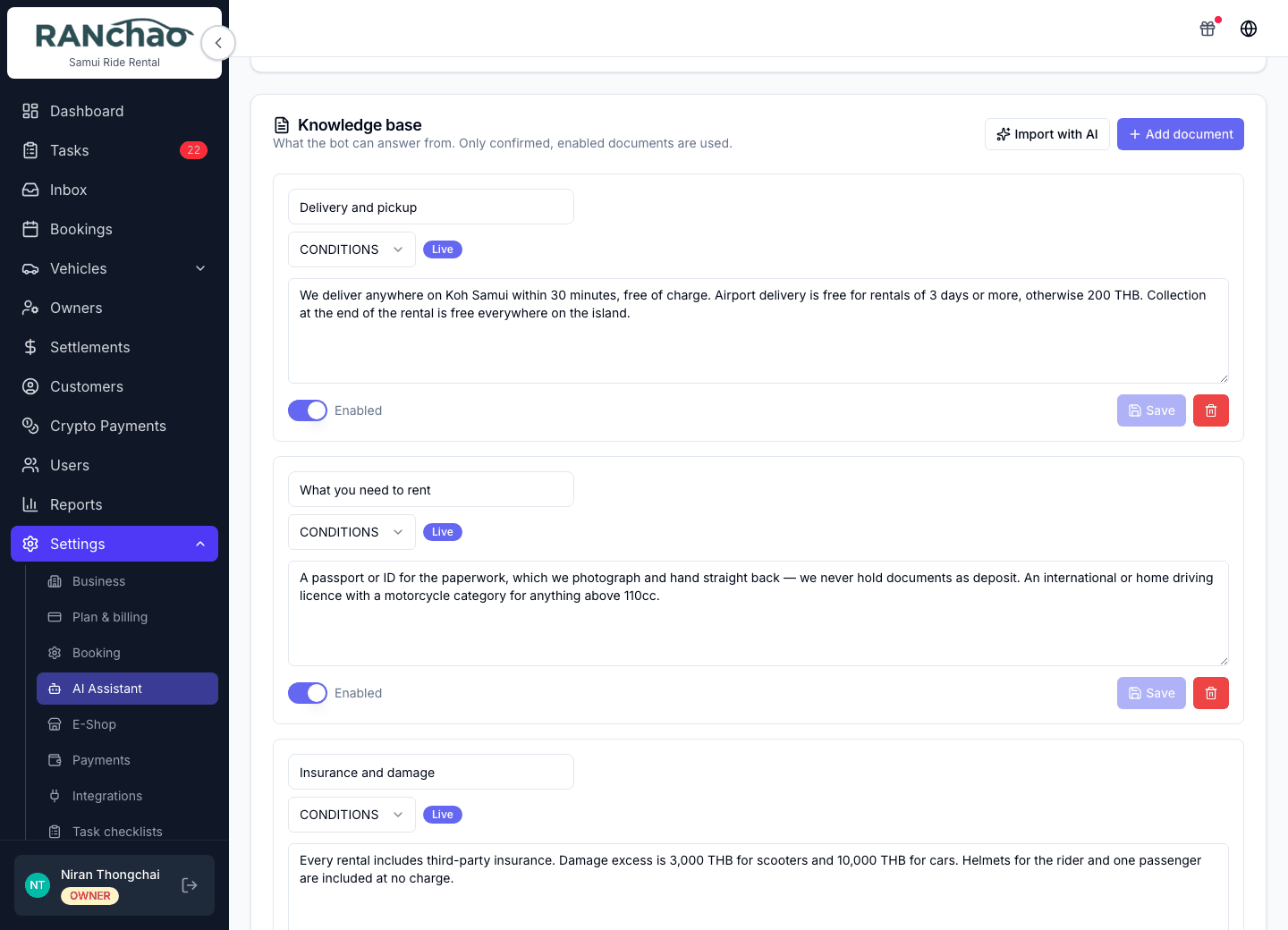
A document you write yourself with Add document goes live immediately. Only documents the AI pulls in with Import with AI arrive as drafts, and those you have to press Confirm on before the bot will use them.
Import handles pasted text, photos, PDF and Word files, or your website address. (The hint above the upload box still says PDFs are not supported. It is out of date: they are.)
Importing your website is the fastest way to fill this in. Type your address, press Import site, and it reads your pages and tidies them into a set of drafts for you to review.
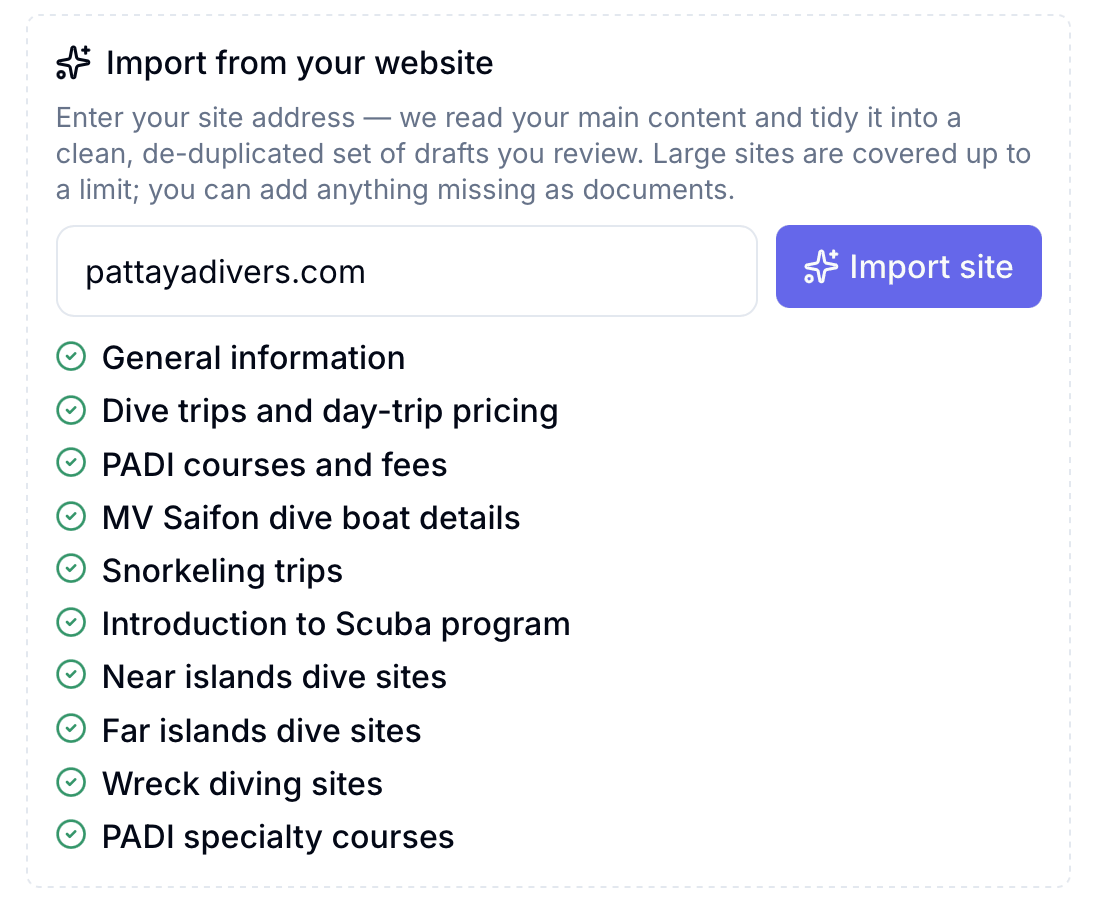
One thing to know before you rely on it: it reads the text your pages serve. A site built as a single-page app renders its content in the browser, so the importer sees an empty page and tells you so. If that happens, upload your documents or paste the text instead.
The practical advice: put your prices and your conditions in here properly. The bot will refuse to guess, which is the behaviour you want, but it means a thin knowledge base produces a bot that constantly says it does not know.
The AI co-pilot: where the commands go
This is the question people ask most, so plainly: the co-pilot is not a panel in this app. There is no command box in the React app, no chat sidebar, no slash-command bar on the booking page.
You type co-pilot commands inside a conversation in the Inbox, in the private note tab, the internal note area your customer cannot see. You are talking to the system while looking at the customer's chat, and it answers you in the same private note thread.
That is why it needs the inbox: there is nowhere else to type the commands.
It is a separate paid add-on (AI co-pilot, ฿890/month, Business plan). Without it, a command answers in the private note telling you which add-on it needs, so you are never left wondering whether you typed it wrong.
The commands
| Type | What you get back |
|---|---|
/summarize | A private note summarising the whole conversation: what they want, dates, party size, pickup, open questions. It will not invent anything that was not said |
/draft | A suggested customer-facing reply, as a private note. Copy it, edit it, send it yourself. Add a hint after the command to steer it, for example /draft offer the Tuesday boat |
/book | Reads the conversation and creates a draft booking, then gives you a link to review and confirm it. Add the kind when you run more than one vertical: /book rental, /book property, /book trip |
/paylink qr | Sends the customer a PromptPay QR for the amount, right in the conversation. /paylink qr 1400 to name the figure |
/paylink crypto | The same, in USDT (TRC-20): address, amount and a QR |
/help | Lists the commands your account can actually run |
So a payment link can be generated and sent to the customer straight from the chat, without switching screens. Today that is PromptPay and USDT; sending a card link from the conversation is on the roadmap, and until then card links are created on the booking page — see Getting paid.
Three things about /book worth knowing before you rely on it:
- It refuses rather than guesses. Without the dates and a name it tells you what is still missing and waits. If the chat says "a scooter" and you have four, it lists them and asks which — booking one at random would be a confident, plausible, wrong answer, and nobody would think to check it.
- What it could not read, it flags. The draft comes back with a note saying which parts to check: a phone taken from the chat contact rather than said out loud, a pickup address it could not put on the map.
- It is not idempotent. Running it twice creates two draft bookings.
Everything the co-pilot writes goes into the private note thread, so a customer never sees a command or its output. The two exceptions are shop commands, which belong to a different, internal feature and are not part of this add-on.
Which AI add-on do I want?
| You want | Buy |
|---|---|
| Answer common questions so nobody has to | Omnichannel inbox + AI Assistant |
| Also take the order and send a payment link | Add AI booking bot |
| Help your staff while they handle a chat | Add AI co-pilot |
The assistant is the answerer. The booking bot is the transaction layer on top of it. The co-pilot faces your team, not your customers. They are three separate purchases and they do three different jobs.