Appearance
Getting paid
Two questions run this page: how do I ask a customer for money, and how do I know it arrived. The methods differ most on the second one.
| How they pay | You start it | Customer gets | Booking updates by itself |
|---|---|---|---|
| Card link (Omise) | Booking page | A link you send them | Yes, by webhook |
| USDT crypto | The chat bot offers it | Address + QR + amount | Yes, watched on-chain |
| PromptPay | Online store, or the bot | A QR with the amount in it | Only via the bot |
| Bank transfer | Online store only | Your account details | No |
| Cash | Trips page, or a long-term booking | Nothing | No |
| Monthly instalments | Booking page, long-term rentals | Nothing | No |
Two of them reconcile themselves: the card link and crypto. For everything else, somebody has to look and confirm.
Send a card payment link
The everyday way to charge a customer who is not standing in front of you.
Where: open the booking and scroll down. Under Booking Information, in the left-hand column, there is a card headed Card payment link (OMISE). Desktop only: the panel is not on the mobile booking page. The card, and everything on it, is in English whatever language you use.
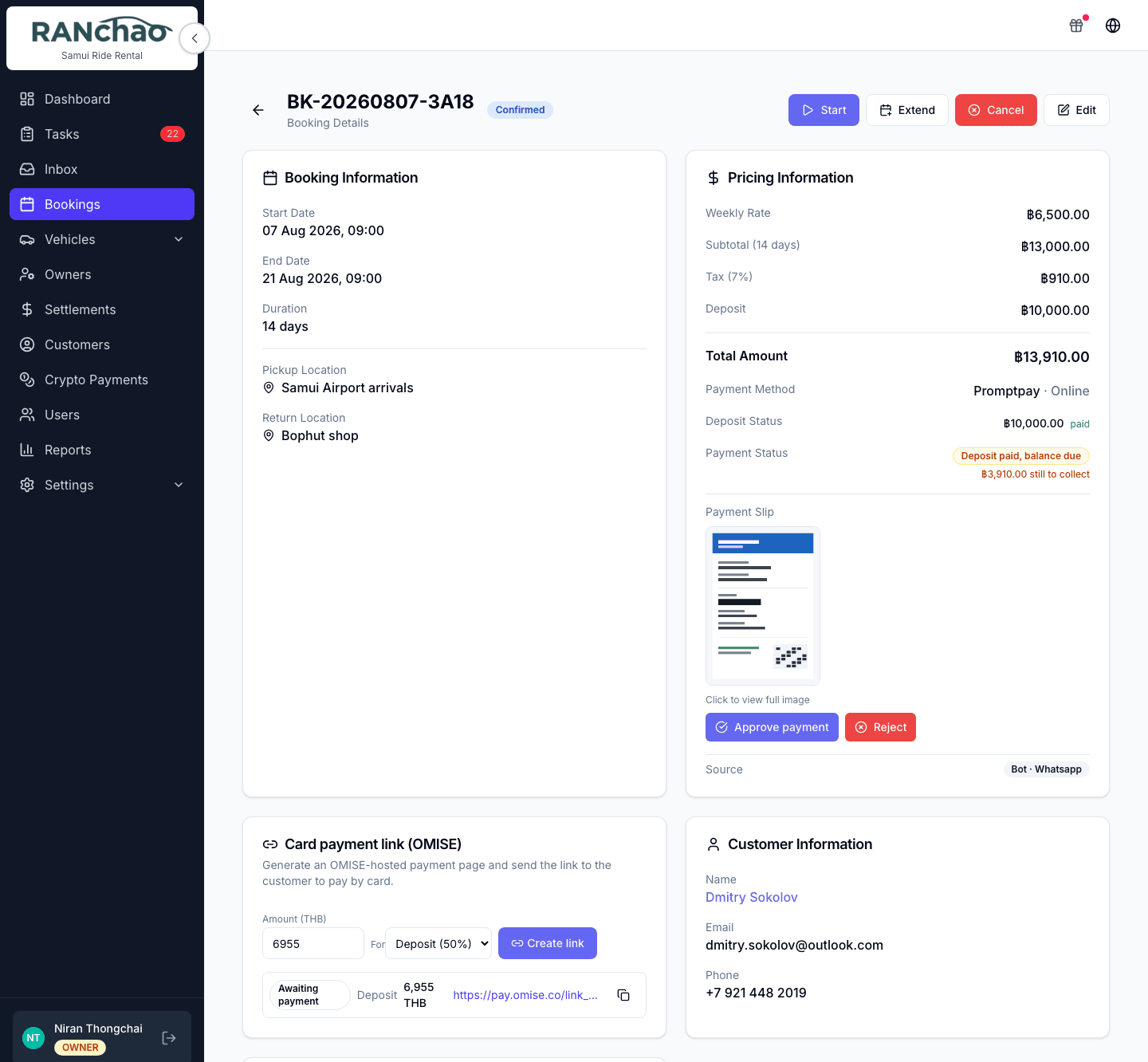
Connect Omise first. Until you do, the card shows one line and no fields:
Connect OMISE in Settings → Payment Methods to create card payment links.
Once connected you get an Amount (THB) field, a For dropdown with deposit (50%) / balance / full (100%), and a Create link button.
The amount prefills from the booking: the full total, the deposit, or the remainder. Create link starts disabled if that prefill is zero — which happens on a booking with no total and no deposit. Type an amount and it enables.
Anyone who can open a booking can create a link, agents included.
Nothing is sent to the customer
Pressing Create link creates the link and adds it to the list below with its URL and a copy button. No email, no chat message, no SMS goes out. Copy the URL and send it yourself, however you normally talk to that customer.
When they pay
Omise calls us, we re-check the payment against Omise directly rather than trusting the message, and then the booking is updated: the payment method becomes card, the deposit is marked paid, and a balance or full link marks the booking verified and moves it to Confirmed if it was a quote or pending.
Three things follow from that:
- The panel refreshes itself about once a minute while a link is still unpaid, and stops once everything has settled — so a link goes from Awaiting payment to Paid in front of you, without a reload.
- A deposit shows as a deposit. The badge has three states: Not paid, Deposit paid, balance due, and Paid in full. A deposit link moves it to the middle one, not the last.
- A booking confirmed this way gets its preparation tasks. They are created unassigned, like the ones from the Confirm button, so somebody still has to pick them up.
If a payment fails, nothing changes and you are not told. The link simply stays Awaiting payment.
Asking for money without leaving the conversation. If you have the omnichannel inbox, a payment link can be generated and sent from the chat with the /paylink command, so the customer is asked where they are already talking to you. Today that covers PromptPay and USDT; card links from the conversation are on the roadmap, and for now they are created here on the booking page. See The inbox and the AI.
The one booking you cannot bill
A cancelled one. The panel says so instead of offering the form, and the server refuses it too, so a link cannot be made by going around the screen.
Everything else can be billed:
- a booking marked returned late is precisely the one that owes you a late fee;
- a completed long rental can still have an instalment outstanding;
- a booking already paid in full can acquire a damage charge after the fact.
Connecting Omise
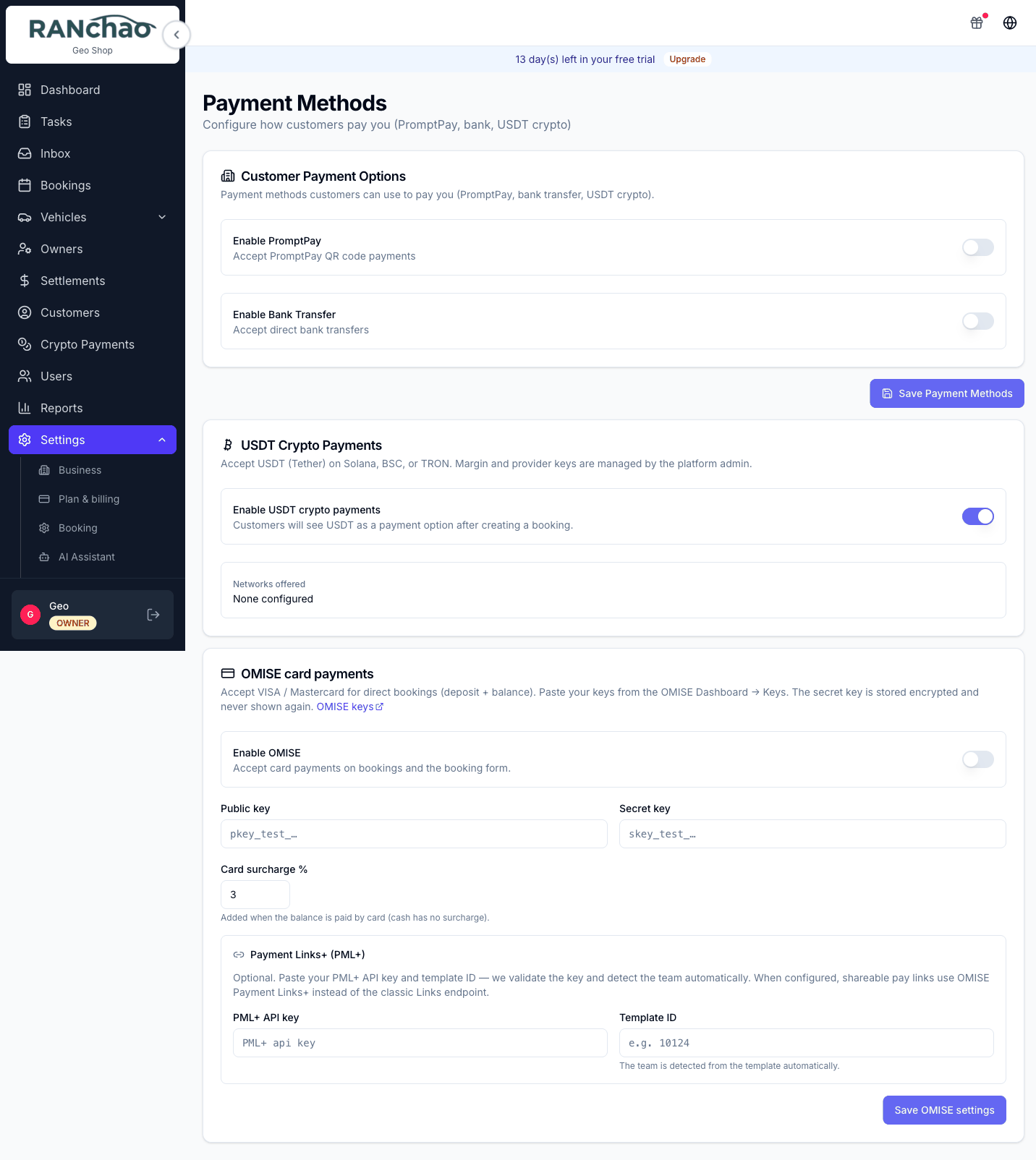
Settings → Payments, the last card on the page. Owner only.
You need your public key and secret key from the Omise dashboard. The secret is encrypted and never shown again after saving. There is an optional Payment Links+ section — an API key and a template ID — if your Omise account has it.
Test keys will connect but will not create links. The card shows Connected and Test, and then link creation fails against Omise's test environment.
PromptPay and bank transfer
Settings → Payments, top of the page: switch each on, then fill in the details. PromptPay takes the number and the account name; bank transfer takes bank name, account name, account number and branch.
You do not need to supply a QR image. One is generated from your PromptPay number and previewed on the page. The QR Code Image URL field is there if you want to use your own, but it is a web address, not a file upload: the image has to be online somewhere already.
Switching these on puts them on your online store, and PromptPay also appears in the chat bot's payment menu; bank transfer is store-only. There is no PromptPay or bank-transfer button on the booking page in the operator app, so with no store and no bot, switching them on changes nothing a customer will see.
Where a customer does meet them:
- Online store. They pick a payment method and upload a payment slip. The slip appears on the booking as an image.
- Chat bot. It generates a QR with the exact amount already in it.
Clearing a slip
A slip paid through the bot is checked automatically against the slip service and the booking is marked verified.
A slip uploaded on the online store waits for you: open the booking, look at the image, and press Approve payment or Reject with a reason.
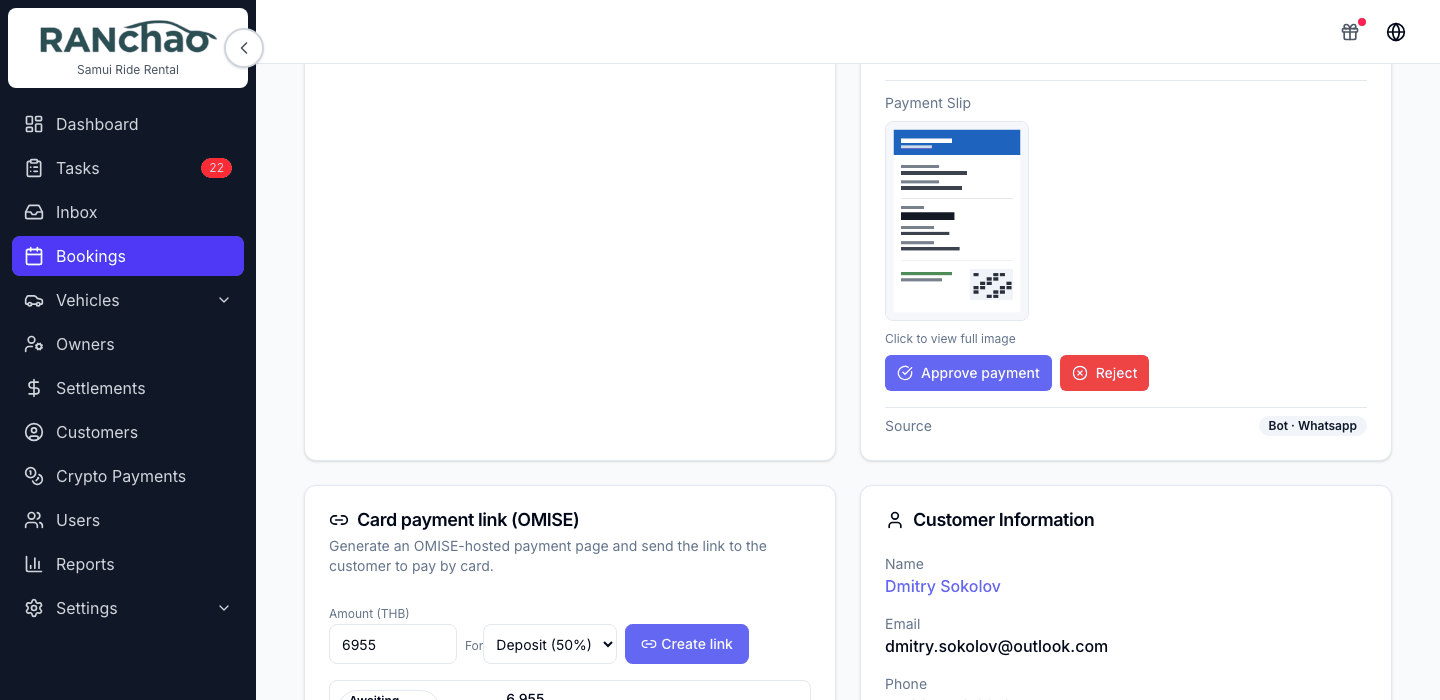
The reason you give is kept on the booking for your own team; it is not sent to the customer, so tell them yourself. If they upload a replacement, the old rejection is cleared with it.
Owner and manager only, and on a computer only: the mobile booking page does not have those controls.
Crypto (USDT)
Requires the Crypto payments add-on.
The customer is offered USDT on TRON in the bot's payment menu and gets a one-time address, a QR, the exact amount and a memo. The address is valid for about 30 minutes, with a 24-hour grace period after that.
Nobody has to ask for it and nobody has to check it. The bot offers the address, the chain is watched, and once the payment has enough confirmations the booking is marked paid. A card link settles itself too, but somebody still has to create it and send it; crypto is the one that runs end to end on its own.
Two things to know:
- A payment below 95% of the amount shows as Underpaid and does not credit the booking.
- A late payment inside the grace window is recorded like an on-time one, so the page will not tell you it was late.
Crypto Payments in the menu is a read-only ledger: what customers paid you in USDT and what has been paid out. There is no crypto button on a booking.
Cash
There are exactly two places cash gets recorded.
The Trips page. Tap a passenger's paid toggle and pick from Cash — at office, Cash — to driver, PromptPay — at office, Bank transfer — at office. The menu is on the computer; on a phone the toggle marks them paid as "Cash — at office" without asking. If the money actually came another way, set it on a computer.
Record Payment on a long-term booking. A long-term booking with a monthly rate has a payment schedule, and each instalment can be recorded with an amount, a method (cash, card, bank transfer, PromptPay) and a note.
For an ordinary short rental there is no "record cash payment" control. The booking form asks for the payment method you expect, which is a note about what you think will happen, not a record that it did.
Deposits
There is a Deposit Amount (THB) field on the booking form. It is optional and blank by default. On a long-term rental, saving without one shows a warning and lets you save anyway. There is no shop-wide default deposit: type it per booking.
What the software tracks is whether the deposit was paid, and it learns that from a card link, from crypto, from the trips paid toggle, or from a marketplace like Viator or Bokun reporting the booking as paid.
Process Return records how much of the deposit was kept against a late fee and how much goes back. Physically handing the money over is still yours to do.
Instalments on long rentals
If a booking is long-term with a monthly rate, a payment schedule is created for it and appears on the booking as its own card. Record Payment takes an amount, a method and a note. Owner and manager only.
Invoices, receipts and contracts
Document generation — invoices, receipts, rental contracts — is on the roadmap and not built yet. For now a quote taken through the online store gives you a reference code on screen and an entry in your bookings list rather than a document, and paperwork your customers need is written outside the platform.
The one PDF the system produces today is the trip ticket, generated after payment for that product.
If your customers need particular paperwork, tell us what and in what shape — that is what decides the order this gets built in.